Get Started
Get Started


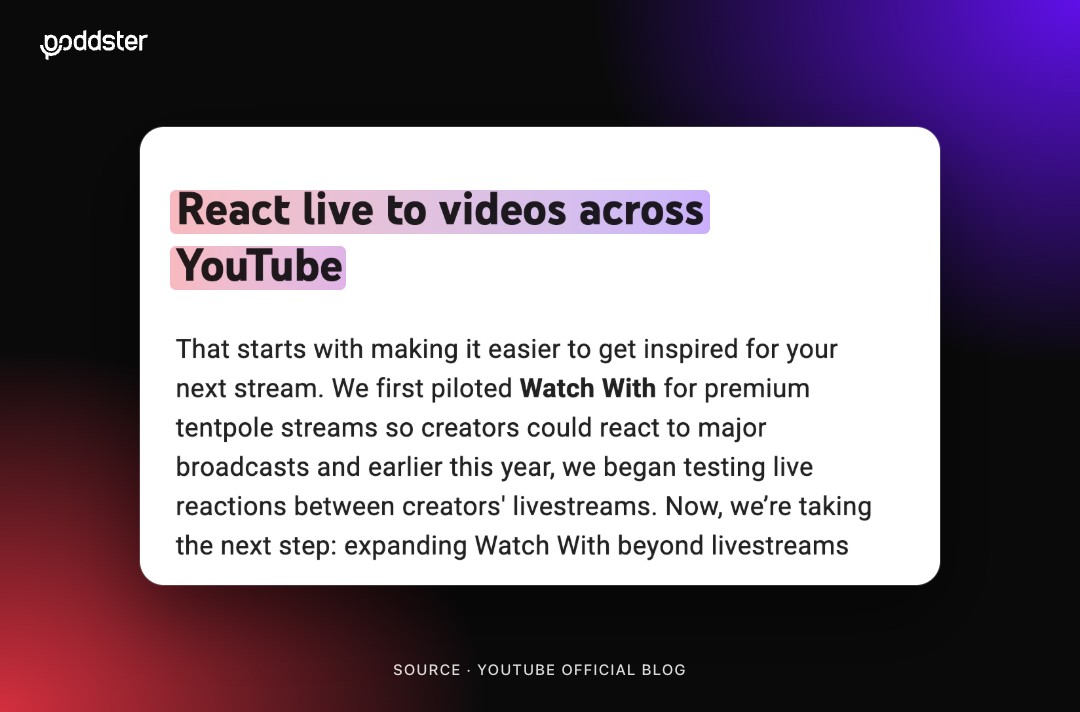
YouTube Studio can now turn a moment from your full podcast episode into a captioned vertical Short that links back to the episode. Here's how the tool works, where it falls short and a simple workflow for using it well.


Earlier this month we wrote about reports that YouTube was building an AI tool that turns audio clips into Shorts. Now YouTube has shipped a related feature aimed squarely at video podcasts, and you can use it today.
On 12 November 2026, YouTube announced that its video clips tool in YouTube Studio now creates Shorts as well as standard clips. Pick a moment from a full episode, and YouTube turns it into a vertical Short with captions that points viewers back to the full episode. For podcasters who have been exporting, reframing and captioning every clip by hand, that's a real time saver. It also comes with a few catches worth knowing before you start.
The tool lives in YouTube Studio. Go to Content, open an existing video, choose the clips option from the left-hand menu and select Create clip or Short. From there:
That last point is the most valuable one for podcasters. A Short only helps your show if people who enjoy it can find the full conversation, and this tool builds that path in by default. Standard (horizontal) clips made with the same tool don't get the automatic link, so YouTube suggests adding a link to the source video in the clip's description.
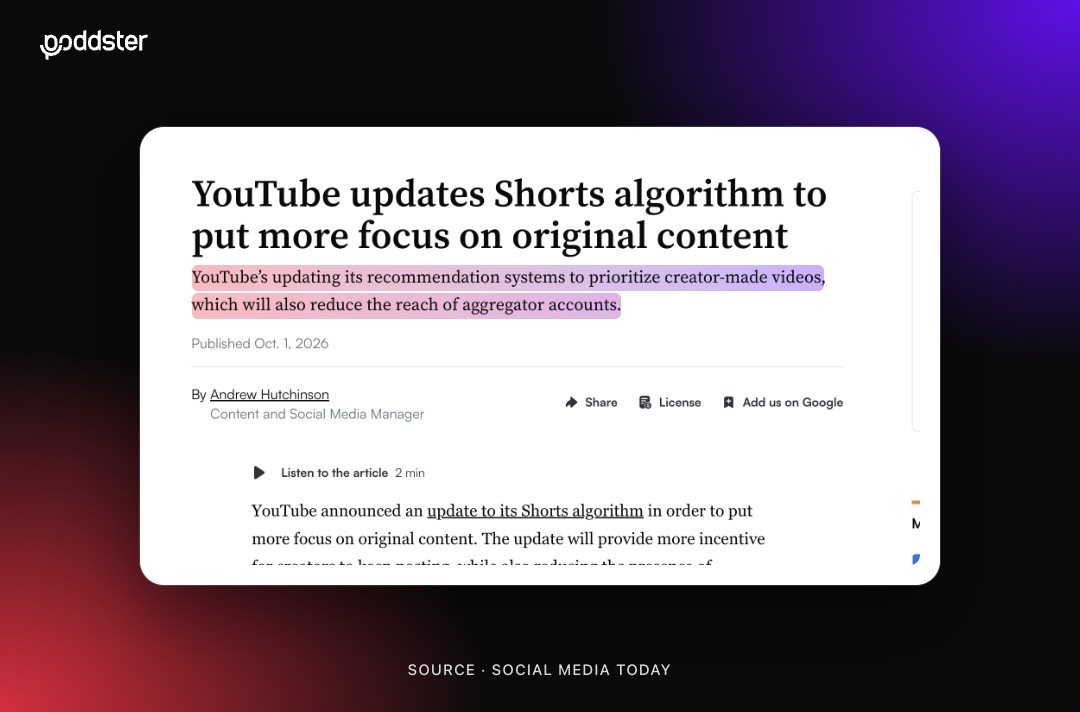
YouTube also states plainly that you won't be penalized for using your own content in a video clip or Short. Given how many podcasters worried when YouTube started demoting re-uploaded clips in Shorts, that's a useful reassurance. Clipping your own episode inside Studio isn't the same as reposting someone else's content.
The tool can also suggest moments for you. YouTube looks for parts of your episode that can be watched on their own, and it can generate an outline of the transcript so you can jump between speaker turns. But these AI-powered suggestions and outlines are only available in select countries (Brazil, Canada, France, Germany, India, Mexico, South Korea, Spain, the United Kingdom and the United States) and select languages (English, French, German, Hindi, Korean, Portuguese and Spanish).
That means creators in the UAE, Singapore and many other markets won't see suggested clips yet, and neither will shows recorded in Arabic. Selecting moments yourself from the transcript or timeline isn't listed as restricted, but you'll be doing the choosing.
Honestly, that's no great loss. An AI can spot a moment that stands on its own. It can't tell which moment matters most to your audience, your sponsor or your brand. The best clip in an episode is usually an editorial decision.
Read more: This podcast stopped making the full episode the point. Its clips are the show.
Clips aren't a side project for video podcasts anymore. Sounds Profitable's Podcast Atlas 2026 found that 84% of people who watch podcast clips say clips lead them to become a regular listener at least some of the time, and 81% say clips lead them to watch a specific full episode at least some of the time.
And YouTube is where a growing share of that viewing happens. YouTube says viewers watched more than 700 million hours of podcasts on living room devices in October 2025, up from 400 million hours a year earlier. That makes a Short on someone's phone a natural first step towards a full episode on their TV.
A Short only helps your show if people who enjoy it can find the full conversation.
1. Plan three to five Shorts per episode
Note the strongest moments while you record or during the edit, not after the episode is live. Look for a clear opinion, a surprising number, a short story with a payoff or a practical tip. Each one should make sense to someone who has never heard of your show.
2. Keep each Short tight
Shorts can now run up to three minutes, but that's a limit, not a goal. Start on the most interesting line, not the build-up to it, and end as soon as the point lands.
3. Check the reframe by hand
Automatic reframing works best with a simple setup: one speaker on screen, centred in the shot. If your episode uses wide two-shots, split screens or on-screen graphics, preview every Short carefully. A cropped-out guest or a cut-off name strap looks careless.
4. Fix the captions before you publish
YouTube itself says the quality of automatic captions may vary, and names, brands and industry terms are usually the first casualties. Read them through, correct anything that's off and make sure they match your brand's fonts and colours. Captions are often the first thing a scrolling viewer reads, so they're part of your show's first impression.
5. Keep your podcast playlist clean
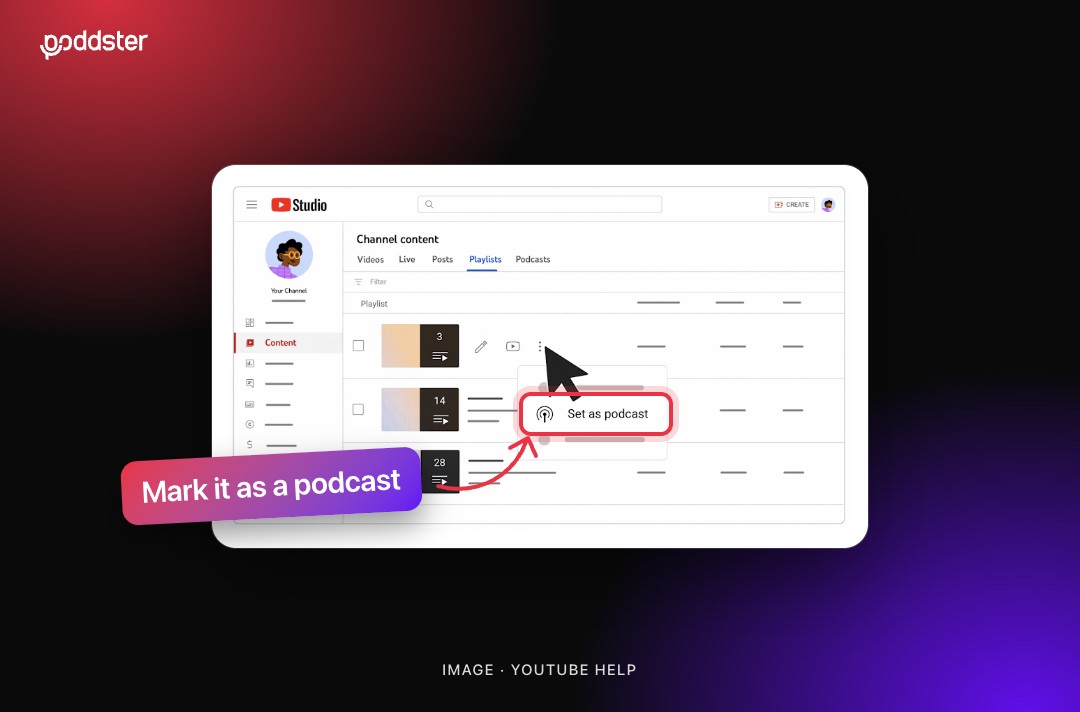
YouTube recommends keeping your podcast playlist for full, standard episodes only. Clips and Shorts made with the tool appear in your Videos and Shorts tabs instead, so your podcast feed stays tidy. If you haven't already, check that your show is marked as a podcast on YouTube, because the playlist is how YouTube knows which videos are episodes.
6. Know when a dedicated editor still wins
The built-in tool is perfect for fast, clean Shorts from a well-framed episode. For your most important moments, a custom edit still beats it: punch-ins, b-roll, branded titles, a hook written for the platform and versions cut for Instagram, TikTok and LinkedIn. Use YouTube's tool for volume and a human editor for the clips that carry the most weight, especially since that's how younger audiences actually find podcasts.
Want a steady stream of Shorts and clips from every episode without adding hours to your week? Talk to the Poddster team about clip editing for your podcast.








Join 5.1K podcasters, creators, and brands already producing, editing and growing their video content with the world's #1 podcast studio brand.