Get Started
Get Started


Apple has published its technical rules for video podcasts. Here is what they say about encoding, downloads and ads, and what to do about each one.
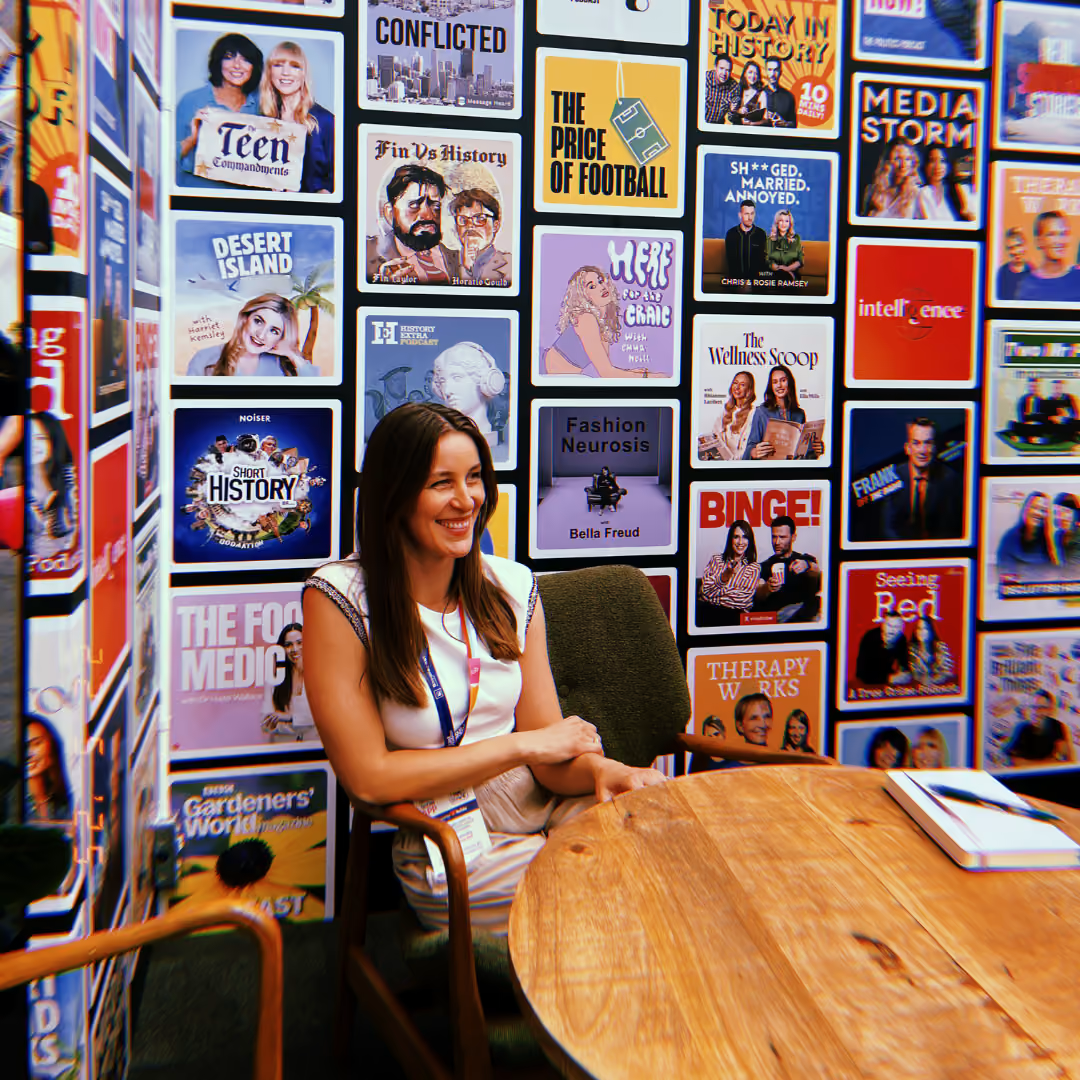

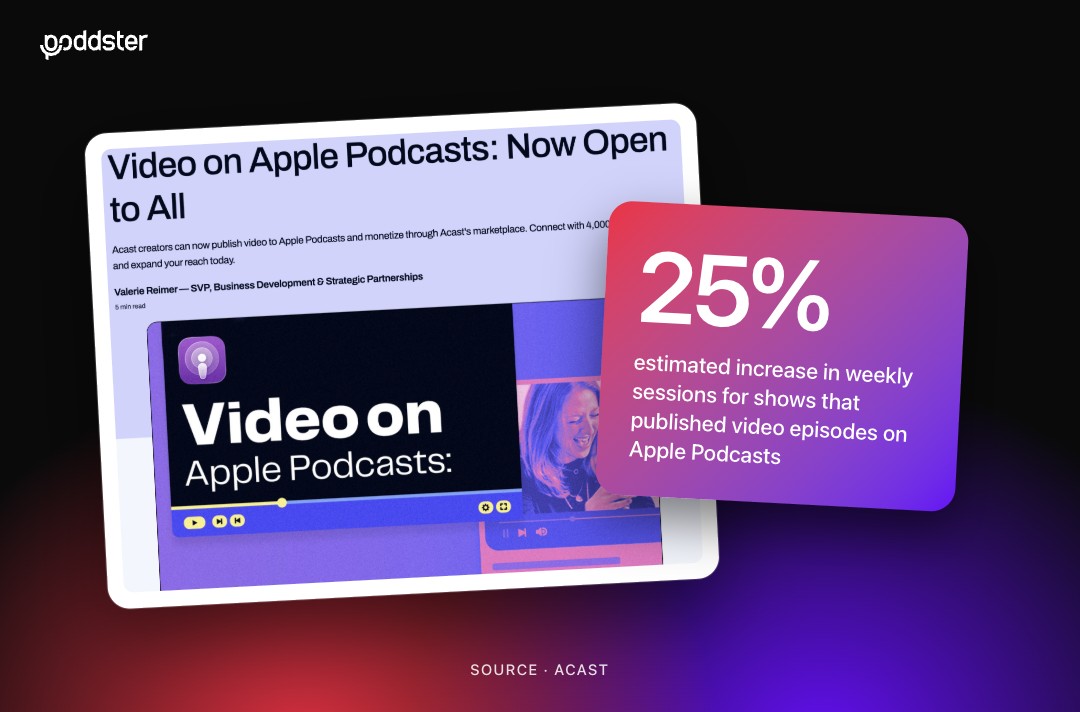
Apple has published its developer documentation for delivering HTTP Live Streaming (HLS) video to Apple Podcasts. If you make a podcast with video, or you are planning one, this is the first time the technical rules sit in one public place. You do not need to rebuild your workflow. You do need to know what your host will ask for and what to capture on shoot day.
This guide turns the spec into decisions for a production team: what Apple actually says about encoding, downloads and ads, and what we would do about each.
HLS is a streaming format that offers several versions of the same video so the player can pick the one that suits the viewer's connection. Instead of one big file, an episode starts with a playlist describing the available versions. According to Apple's guide, the player chooses between them automatically, based on download speed, codec support and the screen in use.
For most shows this is your host's job, not yours. Apple says hosts connect HLS video to a show's normal RSS episodes through its Podcasts Connect API, and hosts that want access need to apply first. The first practical step is a one-line email to your hosting provider: do you support HLS video for Apple Podcasts, and when?
Read more: what Apple Podcasts video on Mac and Apple TV already looks like for viewers.
Apple's encoding guidance is short and specific. Pass these to whoever exports your episodes:
Our advice is to record and keep your masters at 48 kHz from the start. That way nothing gets resampled on the way to Apple, and the same files work for your audio feed and your video version.
This is the part of the spec that matters most for strategy. When followers have auto-downloads switched on, Apple Podcasts delivers audio-only downloads by default. It does not turn on video auto-download for anyone. Followers can opt in to video downloads, and everyone else can still stream the video on demand.
Apple also handles mixed situations gracefully. If someone has only the audio on their device and taps for video, the app streams the video, and the audio keeps playing if the connection drops. If they lock the phone or connect to CarPlay, video traffic stops and the audio carries on.
The lesson is that your episode must work as pure audio first. Spoken descriptions of anything shown on screen, clean sound and a strong opening still do most of the work. If you are weighing up whether video is worth the effort at all, our look at whether adding video to a podcast pays off walks through the data.
One more technical point for your host or producer: Apple says to keep your media and ad URLs resolvable and replayable later. If a URL fails to resolve at a later date, playback errors occur.
For sponsored and branded shows, the ad mechanics are worth understanding. Apple's documentation describes ads as interstitials: alternate content that the player inserts at a set point without altering the main media. They are signalled in the playlist, and the ad can either be named in advance or decided at the moment of playback or download. If there is no ad to place, the list is left empty and the player simply skips the break.
For a brand, that means two ways to run sponsorship. You can keep host-read spots baked into the recording, or you can leave defined breaks and let a dynamic system fill them. Many shows will use both. Decide which slots are permanently yours before you ask your host to set up breaks.
Before you turn on video for Apple Podcasts, run through this list:
Platforms are moving quickly on video, and the same week often brings several announcements. We covered how several platforms upgraded video in the same week if you want the wider picture. If you would like help planning a video workflow that meets these specs, get in touch with the Poddster team.



Join 5.1K podcasters, creators, and brands already producing, editing and growing their video content with the world's #1 podcast studio brand.